BrowserAPI – A tool to make Gemini session available through a local API
Note: This page was translated into English by AI. The original write-up is in Turkish.
LEGAL DISCLAIMER
This tool is an independent and unofficial project developed solely for educational, research, and personal testing purposes. It is in no way affiliated with, authorized by, or endorsed by Google LLC. Its use may violate Google’s Terms of Service and could result in account restrictions or bans. The software is provided “as is.” By using it, you accept full responsibility.
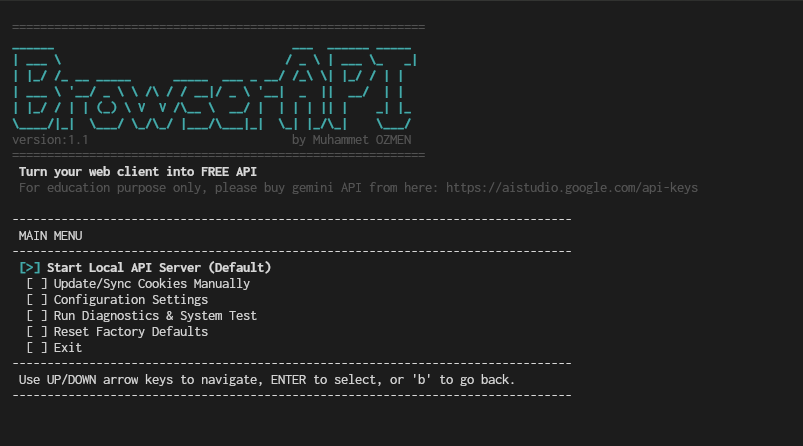
BrowserAPI CLI
Project Purpose and Scope
BrowserAPI is a CLI tool that reads the session cookies of an open Gemini tab in your browser and exposes them as a local OpenAI-compatible API endpoint. This lets you run tools that require an API key — such as OpenCode, Open WebUI, and n8n — completely free of charge, using your existing Gemini browser session.
Features
Current Features
- A local, OpenAI-compatible API address usable by other applications
- A modern CLI usable from the terminal
- Turkish/English language support
- A web-based dashboard for testing and monitoring
- Tool calling support (web search, open-terminal, etc.) (not native, simulated via prompting)
- Real-time message sending and receiving via WebSocket
- Model selection from the CLI (gemini-3.1-flash-lite, gemini-3.5-flash, gemini-3.1-pro)
Planned Features
- Image/video generation support
- Fallback hierarchy between models
- Integration of models like ChatGPT (the one API to rule them all!)
How It Works
BrowserAPI reads your browser’s Gemini session cookies and starts a local HTTP server. This server mimics the OpenAI API contract. Any compatible client pointed at http://localhost:<port> transparently forwards its requests through your Gemini session as a temporary chat, then returns the output to you.
Installation and Usage Guide
browserAPI is a small tool that turns the Gemini web interface into a local, OpenAI-compatible API. It’s a practical solution for anyone who wants to connect Gemini as a backend to apps like Open WebUI or Cursor. Here’s a quick installation and usage overview.
Installation
Installation isn’t complicated — it takes just a few steps:
- Clone the project
git clone https://github.com/muhammetozmen/browserAPI.git
cd browserAPI
- Set up the virtual environment
You can run install.sh on Linux/Mac or install.bat on Windows for automatic setup. To do it manually:
python3 -m venv .venv          # Linux/Mac
.venv/bin/pip install -r requirements.txt
On Windows, the equivalents are python -m venv .venv and .venv\Scripts\pip install -r requirements.txt.
- Launch the app
./lin_run.sh   # Linux
./mac_run.sh   # Mac
./win_run.bat  # Windows
That’s it! The CLI will launch.
Usage
First Launch
On first launch, after selecting a language and accepting the terms of use, you’ll be asked to choose a browser that’s already logged into your Gemini account (a free account works too, though your limits will depend on your plan). If the browser isn’t found automatically, you’ll need to enter its path manually.
Next come the host address, model preferences (weak/default/pro), and log/cookie refresh settings — for most users, just pressing Enter to accept the defaults is enough. Once you see “INITIALIZATION SUCCESSFUL!”, the setup is complete.
General Usage
Once configuration is done, you can start the server from the main menu with the “Start Local API Server” option. This server exposes an OpenAI-compatible API at http://127.0.0.1:4747.
There are two ways to connect it to Open WebUI, Cursor, or similar tools:
Method A — Single Connection:
- API URL:
http://127.0.0.1:4747/v1 - API Key: any value (not actually checked)
- You can switch between
gemini-2.0-flash,gemini-1.5-pro, orgemini-2.0-flash-litevia model selection.
Method B — Separate Model-Specific Connections: If you need separate endpoints for different tasks (e.g., a fast model for autocomplete, a strong model for complex tasks):
http://127.0.0.1:4747/v1/defaulthttp://127.0.0.1:4747/v1/stronghttp://127.0.0.1:4747/v1/weak
Again, any value works for the API Key field on each.
In short: clone it, set up the virtual environment, run it, pick your browser, start the server — your Gemini is now serving as a local API.
YASAL UYARI
Bu araç, yalnızca eğitim, araştırma ve kişisel test amaçları için geliştirilmiş bağımsız ve resmi olmayan bir projedir. Google LLC ile hiçbir şekilde bağlantılı değildir, yetkilendirilmemiş veya onaylanmamıştır. Kullanımı Google’ın Hizmet Şartlarını ihlal edebilir ve hesap kısıtlamaları veya yasaklarla sonuçlanabilir. Yazılım “olduğu gibi” sunulmaktadır. Kullanarak tüm sorumluluğu kabul etmiş olursunuz.
BrowserAPI CLI
Projenin Amacı ve Kapsamı
BrowserAPI, tarayıcınızda açık olan Gemini sekmesindeki oturum çerezlerini okuyarak bunları yerel bir OpenAI uyumlu API endpoint’i olarak sunan bir CLI aracıdır. Bu sayede OpenCode, Open WebUI, n8n gibi API anahtarı gerektiren araçları, mevcut Gemini tarayıcı oturumunuzu kullanarak tamamen ücretsiz çalıştırabilirsiniz.
Özellikler
Mevcut Özellikler
- Uygulamalar tarafından kullanılabilen openAI ile uyumlu yerel API adresi
- Terminal üzerinden kullanılabilecek modern bir CLI
- TÜRKÇE/İNGİLİZCE dil desteği
- Test ve denetim için web tabanlı dashboard
- Tool calling desteği (web search, open-terminal vs.) (Native değil, prompt ile)
- WebSocket ile anlık mesaj gönderme ve alma
- CLI’den model seçebilme (gemini-3.1-flash-lite, gemini-3.5-flash, gemini-3.1-pro)
Planlanan Özellikler
- Image/video generation desteği
- Modeller arası fallback hiyerarşisi
- Chatgpt gibi modellerin de entegrasyonu (Hepsine hükmeden tek API’i!)
Nasıl Çalışır
BrowserAPI, tarayıcınızın Gemini oturum çerezlerini okuyarak yerel bir HTTP sunucusu başlatır. Bu sunucu, OpenAI API sözleşmesini taklit eder. http://localhost:<port> adresine yönlendirilen uyumlu herhangi bir istemci, istekleri şeffaf biçimde Gemini oturumunuz üzerinden geçici sohbet olarak iletir ve çıktıyı size geri döndürür.
Kurulum ve Kullanım Rehberi
browserAPI, Gemini web arayüzünü OpenAI uyumlu bir yerel API’ye dönüştüren küçük bir araç. Open WebUI, Cursor gibi uygulamalara Gemini’yi backend olarak bağlamak isteyenler için pratik bir çözüm. İşte hızlı bir kurulum ve kullanım özeti.
Kurulum
Kurulum karmaşık değil, birkaç adımda tamamlanıyor:
- Projeyi klonlayın
git clone https://github.com/muhammetozmen/browserAPI.git
cd browserAPI
- Sanal ortamı kurun
Linux/Mac’te install.sh, Windows’ta install.bat çalıştırarak otomatik kurulum yapabilirsiniz. Manuel yapmak isterseniz:
python3 -m venv .venv          # Linux/Mac
.venv/bin/pip install -r requirements.txt
Windows’ta karşılıkları python -m venv .venv ve .venv\Scripts\pip install -r requirements.txt.
- Uygulamayı başlatın
./lin_run.sh   # Linux
./mac_run.sh   # Mac
./win_run.bat  # Windows
Bu kadar! CLI karşınıza gelecek.
Kullanım
İlk Çalıştırma
İlk açılışta dil seçimi ve kullanım koşulları onayından sonra, Gemini hesabınızla giriş yapılmış bir tarayıcı seçmeniz isteniyor (ücretsiz hesap da yeterli, ancak limitleriniz plana göre değişir). Tarayıcı otomatik bulunamazsa yolu elle girmeniz gerekiyor.
Ardından host adresi, model tercihleri (zayıf/varsayılan/pro) ve log/cookie yenileme ayarları geliyor çoğu kullanıcı için varsayılanları Enter’a basarak geçmek yeterli. “INITIALIZATION SUCCESSFUL!” mesajından sonra kurulum tamamlanmış oluyor.
Genel Kullanım
Ayarlar tamamlandıktan sonra ana menüden “Start Local API Server” seçeneğiyle sunucuyu başlatabilirsiniz. Bu sunucu, http://127.0.0.1:4747 adresinde OpenAI uyumlu bir API sunuyor.
Open WebUI, Cursor veya benzeri araçlara bağlanmak için iki yöntem var:
Yöntem A Tek Bağlantı:
- API URL:
http://127.0.0.1:4747/v1 - API Key: herhangi bir değer (kontrol edilmiyor)
- Model seçimiyle
gemini-2.0-flash,gemini-1.5-proveyagemini-2.0-flash-litearasında geçiş yapılabiliyor.
Yöntem B Model Bazlı Ayrı Bağlantılar: Farklı görevler için ayrı endpoint gerekiyorsa (örneğin otomatik tamamlama için hızlı model, karmaşık görevler için güçlü model):
http://127.0.0.1:4747/v1/defaulthttp://127.0.0.1:4747/v1/stronghttp://127.0.0.1:4747/v1/weak
Her biri için API Key alanına yine herhangi bir değer yazmanız yeterli.
Kısacası: klonla, sanal ortamı kur, çalıştır, tarayıcını seç, sunucuyu başlat Gemini’niz artık yerel bir API olarak hizmet veriyor.